
You have not yet added any article to your bookmarks!
Join 10k+ people to get notified about new posts, news and tips.
Do not worry we don't spam!
Post by : Samjeet Ariff
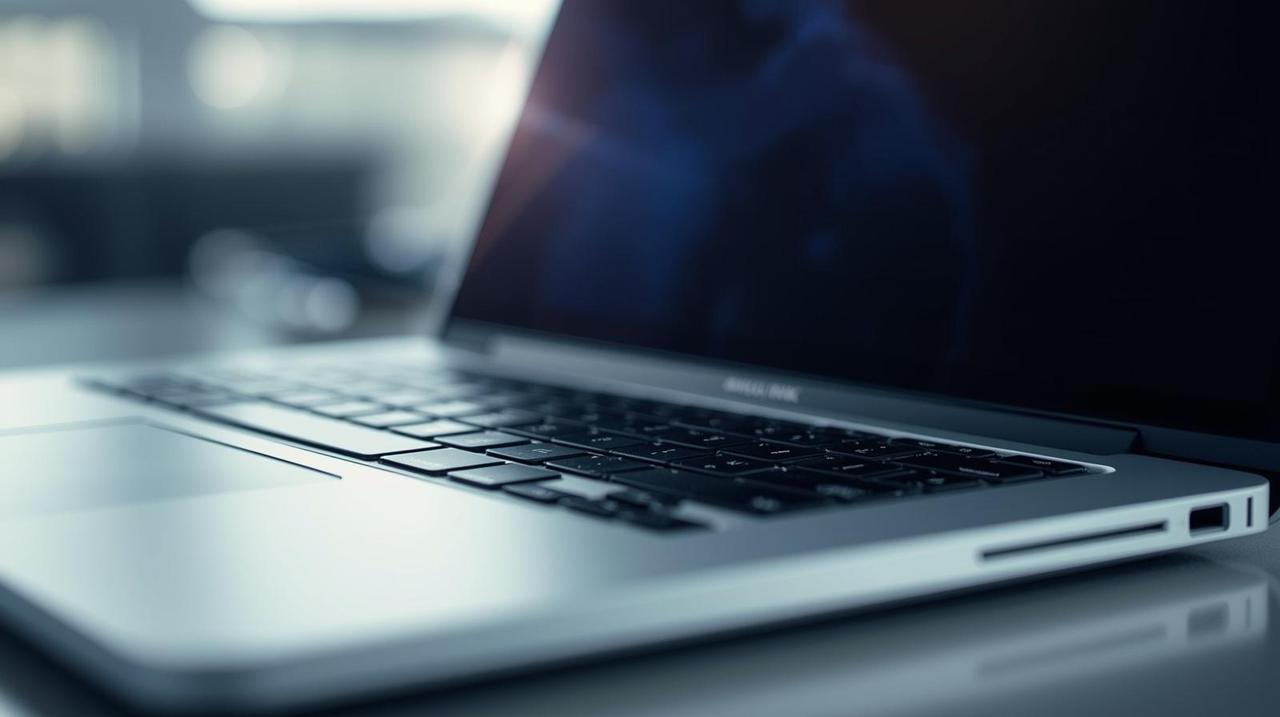
If your laptop is experiencing slowdowns, you’re not the only one facing this issue. As time goes on, devices often lose performance due to various factors like software updates, clutter, and aging components. However, before you decide to purchase a new one, consider these simple and effective methods to enhance your laptop’s speed without breaking the bank.
Here are some practical steps you can implement today to ensure your old laptop runs faster and more efficiently.
Many applications launch at startup, which can suppress system performance even before you open anything.
How to resolve this:
For Windows, press Ctrl + Shift + Esc, navigate to Task Manager, and select Startup Apps to disable any unneeded ones.
On macOS, head to System Preferences > Users & Groups > Login Items and eliminate unnecessary programs.
Reducing startup programs results in a quicker boot time and improved performance from the outset.
Older software, demos, and forgotten games can take up significant storage and memory.
Steps to take:
On Windows, go to Control Panel > Programs > Uninstall a Program.
For Mac, simply drag the applications you seldom use to the Trash.
Focus on keeping only the tools you actively use. You might be surprised by the speed gains from decluttering your device.
If your laptop is still operating on a traditional hard drive (HDD), switching to a solid-state drive (SSD) can substantially improve speed, affecting everything from boot times to application launches.
Advantages of SSDs:
Quicker startup and shutdown.
Enhanced multitasking abilities.
Increased battery longevity.
Even older devices can feel refreshingly new post-SSD upgrade.
If your laptop lags while opening multiple tabs or running heavy applications, your issue may be insufficient RAM.
Solution:
Verify your laptop’s memory limitations according to the manufacturer.
Think about upgrading from 4GB to 8GB or even 16GB for a noticeable boost.
More RAM enables smoother multitasking and faster switching between applications.
System updates may feel bothersome, but they often provide security and performance enhancements.
Ensure that:
Your operating system (Windows/macOS) is current.
Your drivers and firmware are up to date.
All applications are running the latest versions.
Keeping everything updated ensures your laptop functions smoothly and securely.
A lack of available storage can significantly slow your computer, especially if your drive exceeds 80% capacity.
Here’s what you can do:
Utilize built-in cleanup tools like Disk Cleanup (Windows) or Storage Manager (Mac).
Remove temporary files and duplicates.
Empty your Recycle Bin/Trash on a regular basis.
For a more thorough clean, consider utilities like CCleaner or CleanMyMac for safe space management.
Web browsers often use considerable RAM and CPU resources, particularly with multiple extensions or open tabs.
To improve your browser:
Disable unused extensions.
Clear cached data and cookies.
Limit open tabs or utilize extensions that suspend those that are inactive.
Opting for a lightweight browser like Brave or Microsoft Edge can elevate overall performance, too.
Many laptops default to “balanced” or “power-saving” mode to prolong battery life. If you frequently use your device while plugged in, consider switching to High Performance mode.
Steps:
For Windows, go to Control Panel > Power Options and select High Performance.
On Mac, navigate to System Preferences > Battery > Power Adapter and adjust settings for heightened performance.
This minor adjustment can lead to an immediate speed enhancement.
For those still utilizing an HDD, defragmenting your drive can help organize the data for rapid access.
Note: Do not attempt to defragment SSDs; it’s redundant and can decrease their lifespan.
On Windows, search for “Defragment and Optimize Drives” and follow the steps provided.
Aesthetic animations may look appealing but can slow down older systems.
How to disable:
Select Windows: Search for “Adjust the appearance and performance of Windows” and choose Adjust for best performance.
For Mac: Go to System Preferences > Accessibility > Display and minimize motion and transparency.
Disabling visual effects can quickly make your laptop feel more responsive.
Malware and spam processes can significantly slow down your laptop’s operations.
Utilize reputable tools such as Windows Defender, Malwarebytes, or Bitdefender for thorough scans and removal of threats.
Once clean, consider installing a lightweight antivirus solution and avoid running multiple scanners simultaneously.
Apps like cloud services or downloaders can occupy crucial system resources.
Check running applications:
Use Task Manager (Windows) or Activity Monitor (Mac).
Terminate non-essential tasks.
Keep only necessary apps open; your CPU and RAM will appreciate it.
If all else fails, a fresh installation of your operating system can rectify several hidden issues.
Ensure you backup your data prior, then reinstall Windows or macOS cleanly.
Often, this is the quickest path to making your laptop run as good as new.
You don’t always require a new device to achieve fast and efficient performance. By effectively managing startup programs, upgrading hardware, decluttering, and updating software, your laptop’s lifespan can be extended and costs can be minimized.
With a little consistent maintenance, your old laptop can continue to provide years of reliable usage.
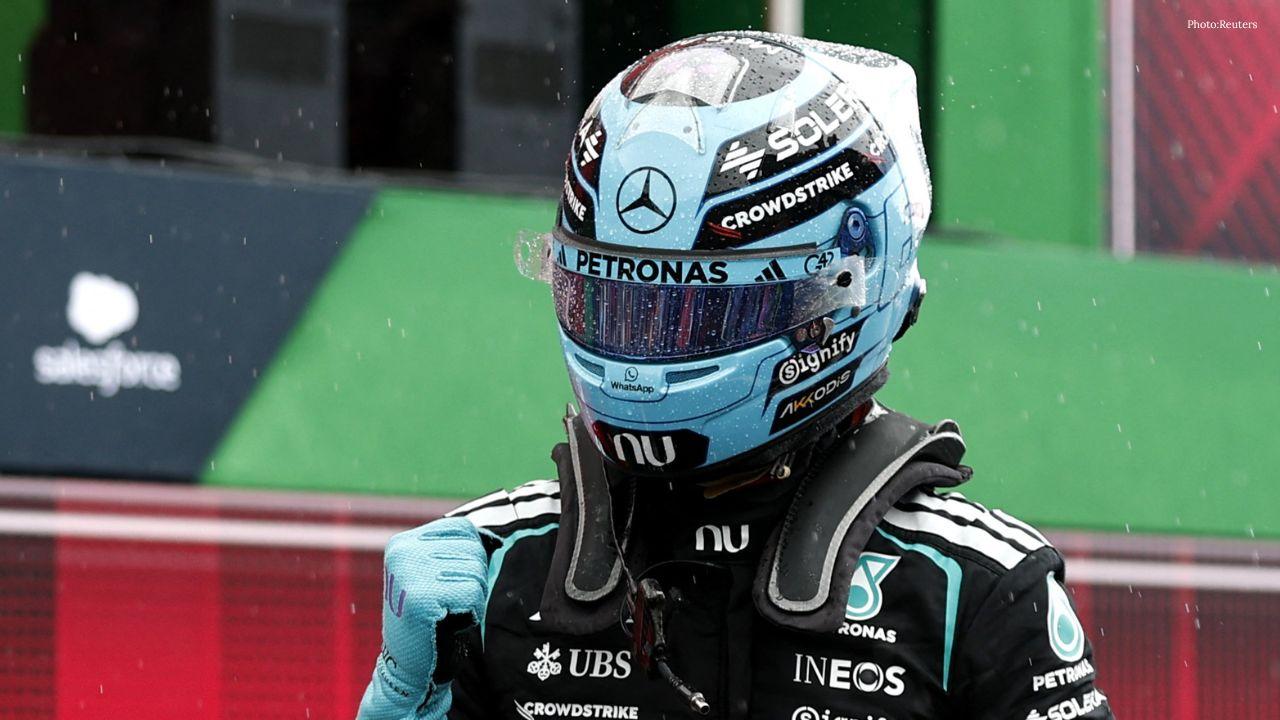








George Russell Wins Dutch GP Sprint, Boosts Mercedes Morale
George Russell wins the Dutch GP Sprint from pole as Mercedes teammate Kimi Antonelli extends his F1

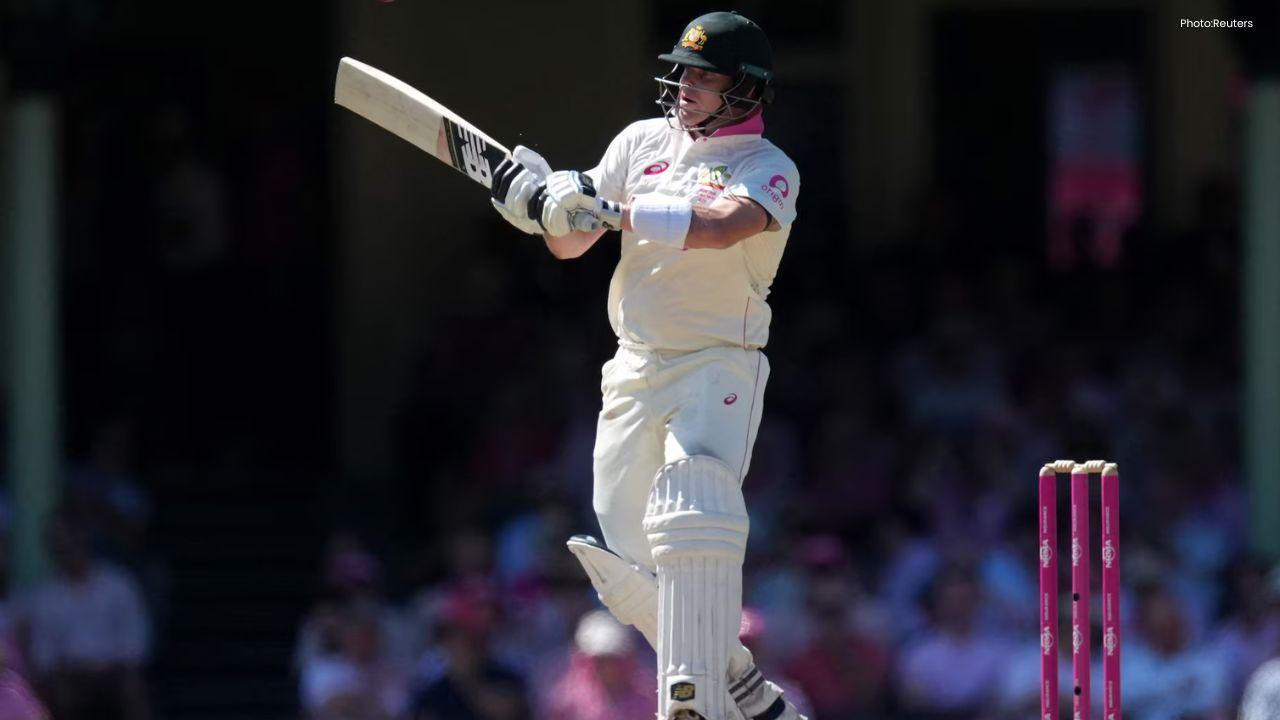
Australia 50/3 After Bangladesh Bowled Out for 64 in Second Test
Australia reached 50/3 after Bangladesh were bowled out for 64 in the second Test, with Mitchell Sta

Jordan Burroughs Returns to Wrestling with 2028 Olympic Dream
Jordan Burroughs returns to wrestling with Real American Freestyle as the Olympic champion eyes a po

Lamborghini Catches Fire on Singapore's ECP, Causing Heavy Traffic
A Lamborghini caught fire on Singapore's ECP, causing heavy traffic and bus delays. No injuries were
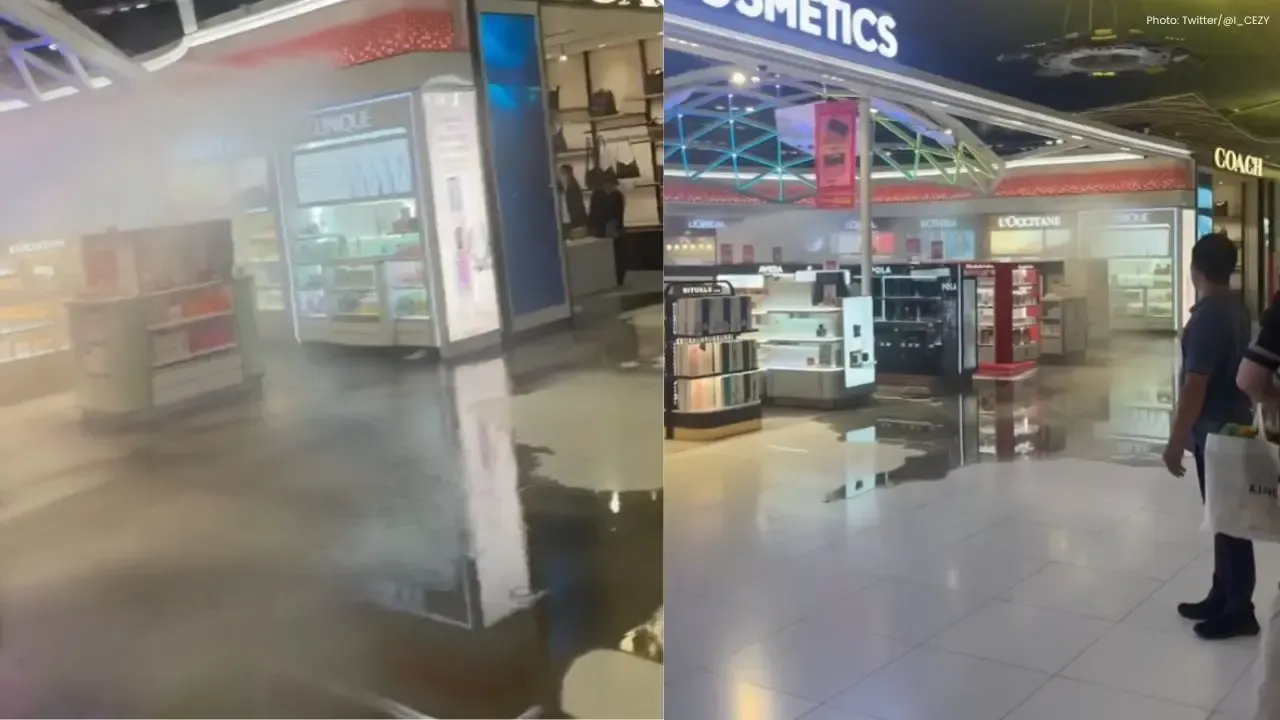
Bangkok Airport Duty-Free Area Flooded by Pipe Burst
A burst water pipe flooded the duty-free shopping area at Bangkok's Suvarnabhumi Airport on July 16,

Nine Monks Killed in Thailand Pickup Truck Tragedy
An 11-year-old boy driving a pickup truck crashed into monks during a pilgrimage in northeastern Tha